7DS Grand Cross Account Linking Explained: Devices & Backup
By John Ganang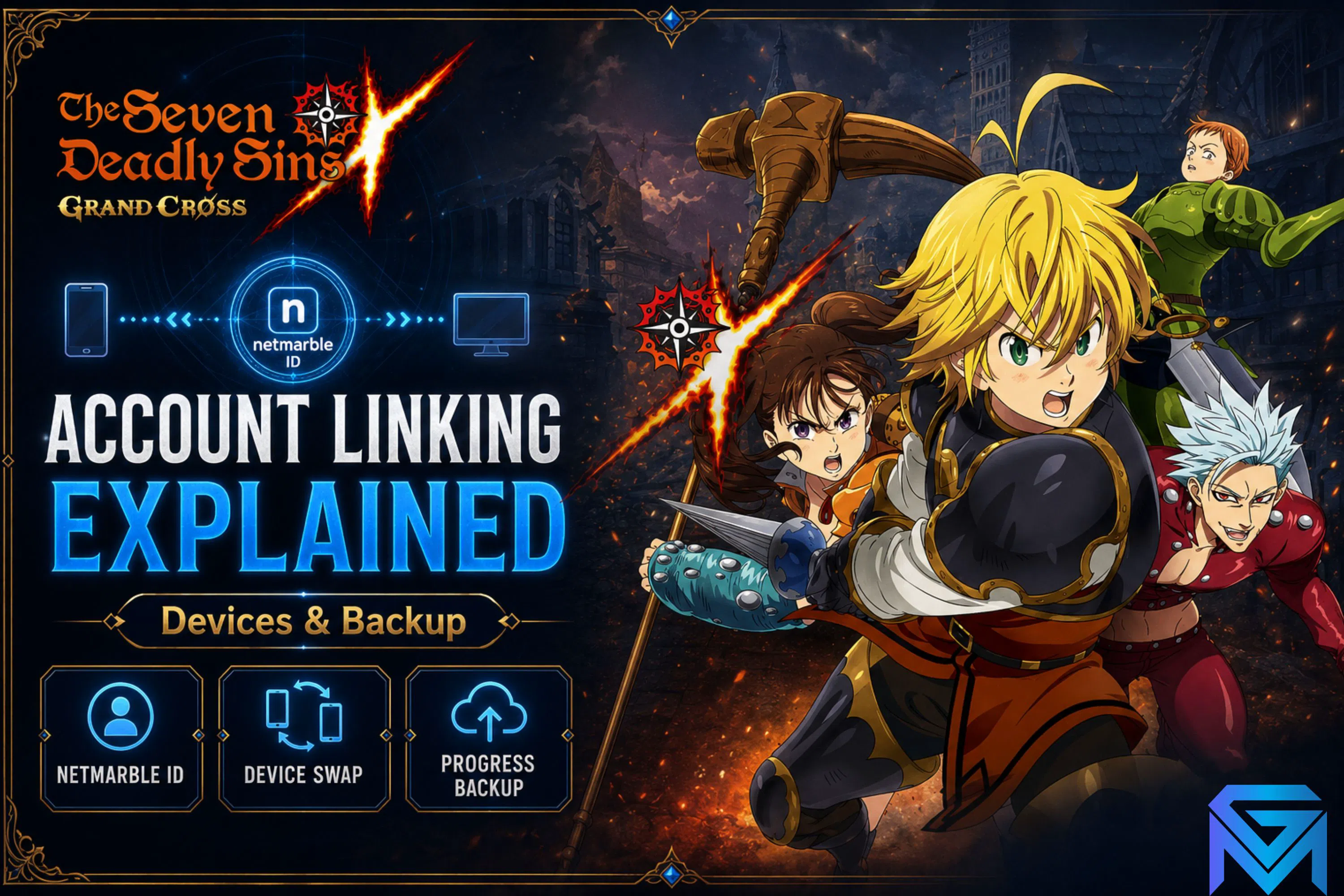
Linking your 7DS Grand Cross account attaches your progress to a permanent external login instead of leaving it stored only on one phone. Once linked, that login — a Netmarble account, Google, Apple or Facebook credential — becomes the key that restores your heroes, gear and diamonds on any device you sign into. We cover 7DS Grand Cross Game Stages Explained separately.
What does account linking actually do in 7DS Grand Cross?
Linking binds your save data to an external credential rather than to the app installation itself. Before you link, the game runs on a temporary guest profile stored locally, and deleting the app or losing the phone can take that profile with it. After linking, the credential is what identifies you.
Device linking protects the account itself, but you should also know how to judge the seller side of a trade — see our guide on spotting trust signals and red flags in 7DS Grand Cross account listings.
This distinction matters more in 7DS Grand Cross than in many mobile RPGs because of how much of your account is invisible progression. A roster is not just a list of heroes — it is awakening levels, ultimate move ranks, gear substats, associated costumes, food buffs and a Knighthood history that took months of stamina to build. None of that lives on a server you can reach without the right login.
A guest profile is best understood as an unsaved document. The game runs, progress accumulates, and everything looks normal, but there is no reliable path back to it if the device is wiped, replaced or fails. Netmarble's official support material is consistent on this point: recovery options for unlinked guest data are extremely limited, and the company treats linking as the player's responsibility rather than something the game does silently in the background.
There is a second, less obvious function. A linked account is also what lets the game recognise you across the Netmarble ecosystem — coupon redemption pages, the official forum and cross-promotion campaigns generally ask for the same account identity. Players who never link often discover this only when a redemption page asks them to sign in and they have nothing to sign in with.
If you are still mapping out how the pieces of a 7DS Grand Cross profile fit together, the 7DS Grand Cross account progression guide covering heroes and gear lays out what actually accumulates on the account you are protecting.
Which login methods can a 7DS Grand Cross account be linked to?
The game supports a small set of external credentials, usually a Netmarble account plus the platform sign-in for your device — Google on Android, Apple on iOS — and historically Facebook as an additional option. The exact list shown in the menu depends on your platform and client version.
The Netmarble account is the most important of these, and it is worth understanding why. It is a first-party account operated by the publisher, which means it is the identity Netmarble's own customer support can look up, verify and act on. Platform logins such as Google Play Games or Apple's Game Center are convenient, but they are third-party identities: if you lose access to the underlying Google or Apple account, the recovery conversation happens with Google or Apple first, not with the game's support team.
In practice most experienced players treat these as layers rather than alternatives. The platform login handles day-to-day convenience — tap once, you are in. The Netmarble account is the durable anchor underneath it. Where the game allows both to be attached to the same profile, attaching both gives you two independent routes back in.
A few characteristics are worth knowing before you choose:
- Netmarble account: created with an email address and password, recoverable through Netmarble's own account recovery flow, and the identity their support staff can verify directly.
- Google sign-in: tied to the Google account signed into the device; fast, but it moves with your Google credentials rather than with the game.
- Apple sign-in: tied to your Apple ID and subject to Apple's own privacy relay behaviour, which can obscure the email address the game sees.
- Facebook: convenient for players who already use it, but a suspended or deactivated social account can take your access with it.
The general principle: prefer the credential you are least likely to lose and most able to prove ownership of. For most players that is an email-backed Netmarble account with an address they genuinely control and check.
How do you link a guest account to a Netmarble account?
Linking is done inside the game rather than through an external site. You open the settings or menu panel, find the account or user information section, choose the link option, and sign in with — or create — the external credential you want to attach. The game then confirms the binding.
The flow is short, but the order matters. You link from the profile you want to keep. The game attaches your current progress to the credential you sign in with, so you must be running the account you care about at the moment you link. This sounds obvious and is the single most common way players cause themselves problems.
The general sequence looks like this:
- Launch the game and confirm you are on the correct profile — check the player name, rank and a hero you recognise before touching anything.
- Open the in-game menu and navigate to the settings or account area.
- Select the link or account-connection option.
- Choose your credential type and complete the sign-in, including any email verification step.
- Return to the account screen and confirm the linked credential is now displayed there.
That last step is not optional. A link you have not visually confirmed on the account screen is a link you should assume did not complete. Interrupted sign-ins, cancelled permission prompts and network drops mid-flow all produce a client that looks fine and a binding that never happened.
One serious caution: if the credential you sign in with already has a 7DS Grand Cross profile attached to it, you are no longer linking — you are switching. The game will generally warn you, and the warning is real. Players who tap through it quickly can find themselves looking at a different account's roster and no obvious way back, because the credential now points somewhere else. Read the confirmation dialog properly, every time.
How do you move your account to a new phone?
Transferring is a matter of installing the game on the new device and signing in with the linked credential rather than continuing as a guest. The account data is retrieved from the server, so the new device does not need any files copied from the old one.
The failure mode is almost always the same: the player installs the game, taps past the opening screen, lands on a fresh tutorial, and panics. That fresh tutorial is a new guest profile, not the loss of the old account. The old account is still sitting on the server behind the credential — you simply have not signed into it yet.
To avoid that entirely, work in this order:
- On the old device, before anything else: confirm the account screen shows a linked credential, and note your player name and friend code somewhere outside the game.
- Install on the new device and let the initial download complete on a stable connection — 7DS Grand Cross ships a substantial resource download, and an interrupted one produces errors that look like account problems but are not.
- Sign in with the linked credential at the earliest screen that offers it, instead of tapping through to the tutorial.
- Verify the roster — check your rank, your main team and your diamond balance before you play, spend or claim anything.
- Keep the old device intact until the new one is confirmed working. Do not factory reset, sell or wipe it on the same day.
That final rule is worth internalising. As long as the old installation still exists, you have a fallback and a support case with evidence. Once it is wiped, you have neither.
What happens to your data if you play across iOS and Android?
Moving between operating systems is possible where the account is linked to a credential that exists on both, but paid currency generally does not travel cleanly. Store purchases are processed by Apple or Google, and platform-locked balances are a normal restriction across mobile gacha titles, not a bug.
The practical consequence is that your account identity and your currency can behave differently. Your heroes, gear, costumes and progression follow the account. Diamonds obtained through a platform storefront may be recorded against that storefront, and a portion of your balance can appear unavailable after switching. Free diamonds earned in-game are usually unaffected.
If you want to understand how diamond balances are structured before you switch platforms, the 7DS Grand Cross diamond top up page shows the denominations the game is normally sold in.
Because the exact behaviour depends on client version, region and the storefront in question, treat this as a "check before you commit" item rather than a fixed rule. The in-game notice board and Netmarble's customer support pages are the authorities here, and they are the only sources worth trusting on it — community answers on this specific topic age badly and are frequently out of date by a version or two.
If you want to understand which parts of your balance are actually at stake, the 7DS Grand Cross event guide to currency types and exchange shops breaks down where each currency comes from and where it can be spent.
Why does the server or region matter when you log back in?
7DS Grand Cross has operated separate regional versions with independent data, and an account created on one does not appear on another. Signing in with the right credential on the wrong regional client will show you nothing, because your progress lives on a different service entirely.
This catches returning players constantly. Someone who played on the Global version, stopped for a year, and reinstalls from a store listing for a different regional build will sign in successfully and see an empty account. The credential worked. The service is simply not the one holding their data.
Two checks prevent it. First, confirm which version you originally played — the app icon, the client's language options and the events you remember are all useful clues. Second, install from the same store listing and region you used before. If your device's store region has changed since you last played, the listing you are offered may not be the one you want.
Within a single regional version there is normally no separate server selection to worry about in the way older MMOs handled it, so the practical question is almost always "which regional build", not "which server slot".
What can you do if you lose access to your account?
Recovery runs through Netmarble's official customer support channel, either the in-game inquiry form or the support site. Your realistic chances depend almost entirely on what evidence you can produce, which is why the preparation you do before a problem occurs matters more than anything after.
Support teams work from identifiers. The more of these you can supply, the stronger your case:
- Your in-game player name and friend or user code.
- The linked credential — the email address on the Netmarble account, or the platform identity used.
- Approximate account creation date and the device you originally played on.
- Purchase receipts, if you have ever spent money — these are among the strongest proofs of ownership available, because they tie a payment identity to the account.
- Distinctive account details: your highest-rank heroes, guild or Knighthood name, recent activity.
Take a screenshot of your account screen and your main team now, while everything works, and store it outside the phone. It costs nothing and it is the single most useful thing you can hand a support agent later.
Be realistic about the ceiling, though. An unlinked guest account on a device you no longer have offers support very little to work with, and no amount of persistence changes what the account system can verify. Prevention genuinely is the whole strategy here.
How do you keep more than one account without losing either?
Multiple accounts require multiple distinct credentials — one linked login per profile. Problems arise when players use a single Google or Netmarble account for a second profile, because binding that credential to the new profile can point it away from the original.
The clean approach is one credential per account, decided before you start the second profile rather than after. Create the second Netmarble account first, then start the new profile, then link it immediately. Working in that order means there is never a moment where two profiles are competing for the same credential.
Some players also use their device's multi-user or app-cloning features to keep two installations side by side. That works for convenience, but it does not change the underlying rule: each installation still needs its own linked credential, or the profile inside it is still a guest profile with all the fragility that implies.
Keep a simple written note of which credential maps to which profile — player name, rank, and the email address used. Memory is not a backup system, and a year away from the game is long enough to forget which of three similar email addresses was the right one.
What should you check before you reinstall or clear game data?
Confirm the linked credential is visible on your in-game account screen, and confirm you can actually sign into that credential independently. A link you have never tested is an assumption, and clearing game data is the moment that assumption gets tested whether you like it or not.
Run this short list before you delete anything:
- Open the account screen and read the linked credential currently shown.
- Sign into that credential separately — in a browser, or in your device settings — to prove you still know the password and can pass any verification step.
- Screenshot your player name, friend code, rank and main team.
- Claim anything sitting in your mailbox, since unclaimed items are a needless thing to risk.
- Only then clear data or uninstall.
The recurring theme across every scenario in this guide is that recovery is mostly decided in advance. Two minutes spent confirming a link while the game still works replaces a support ticket with an uncertain outcome. For players who are still building out their first serious roster, the 7DS Grand Cross beginner's guide to heroes, diamonds and teams covers what that roster is made of and why it is worth protecting properly.
Frequently asked questions
Does linking my account cost anything?
No. Account linking is a standard feature of the client and is not tied to any purchase or premium currency. Some versions of the game have offered small one-time rewards for completing a link, but the function itself is free.
Can I unlink an account later and link it to a different login?
Options for changing a link vary by client version and credential type, and some bindings are not freely reversible from inside the game. If you need a link changed, ask Netmarble's customer support before attempting anything that might overwrite the existing binding. GameMarket.gg's guide to 7DS Grand Cross login methods and switching platforms breaks down exactly which login combinations are safe to add or change.
Will linking let me play the same account on two phones at once?
No. The credential lets you sign in on either device, but not simultaneously — signing in on a second device generally disconnects the first. This is normal session behaviour and does not indicate that anything is wrong with your account.
I signed in and the game started a new tutorial. Is my account gone?
Usually not. A fresh tutorial almost always means you are on a new guest profile rather than signed into your linked one. Close the game, relaunch, and use the sign-in option on the title screen before proceeding — and do not link anything from that tutorial profile.
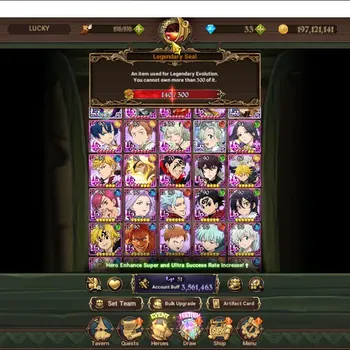
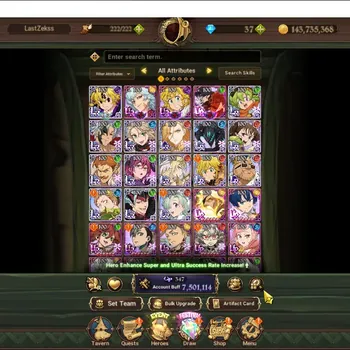
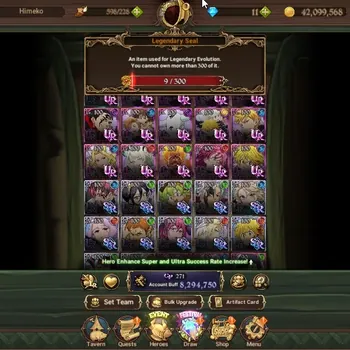
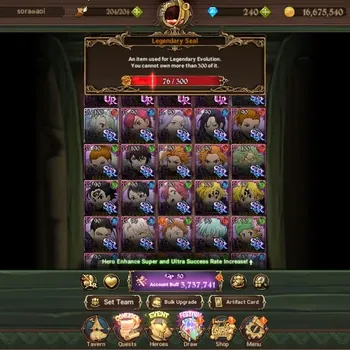
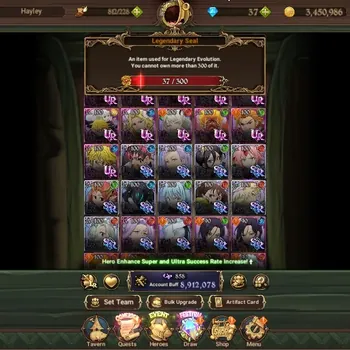
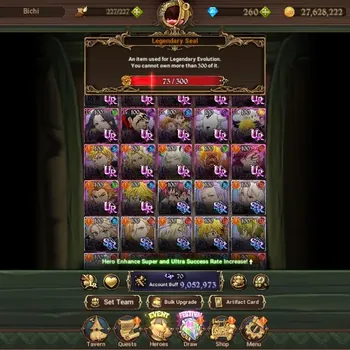
If you are looking at what a well-developed 7DS Grand Cross profile actually consists of, you can browse the available 7DS Grand Cross accounts on GameMarket.gg to see how rosters, awakening levels and gear come together at different stages of progression.
GameMarket.gg is a trusted digital marketplace for everything gaming-related. We serve the gaming community by providing secure access that enhances every gaming journey.