PUBG Mobile Sensitivity Settings: How to Find Your Own
By Sir Ayup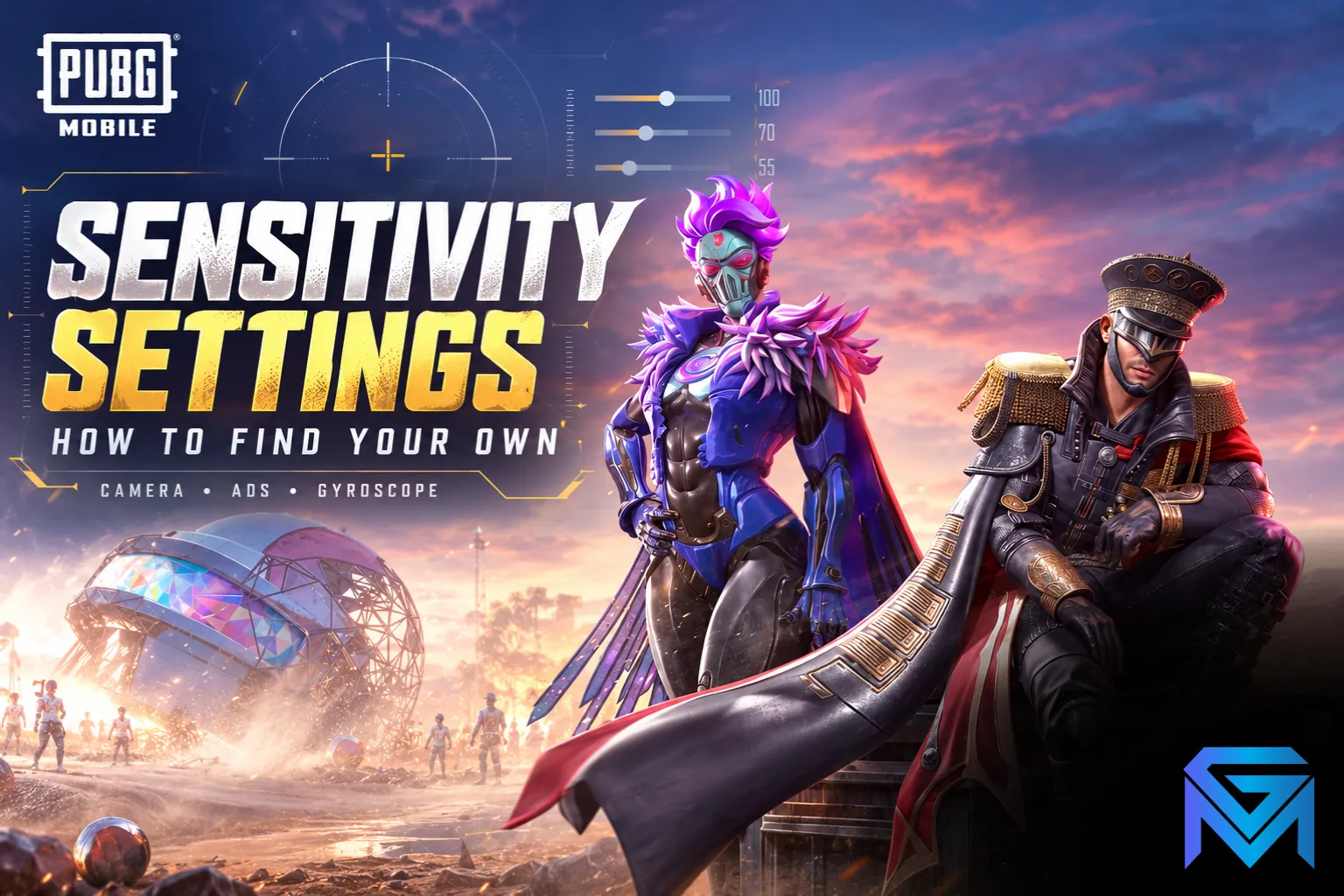
The best PUBG Mobile sensitivity is the one that lets you turn quickly without overshooting and control recoil while firing on your own device, and copied "pro settings" rarely give you that. PUBG Mobile splits sensitivity into several groups, mainly Camera (looking around), ADS (aiming while shooting) and Gyroscope (moving the phone to aim), each with separate values for no scope, red dot and every magnification. The reliable way to find your settings is to start from a balanced base, then adjust one group at a time in the Training Ground until each scope feels controlled.
This guide explains what each PUBG Mobile sensitivity setting does, a step-by-step method to tune your own, and the signs that a value is too high or too low.
What Each PUBG Mobile Sensitivity Setting Controls
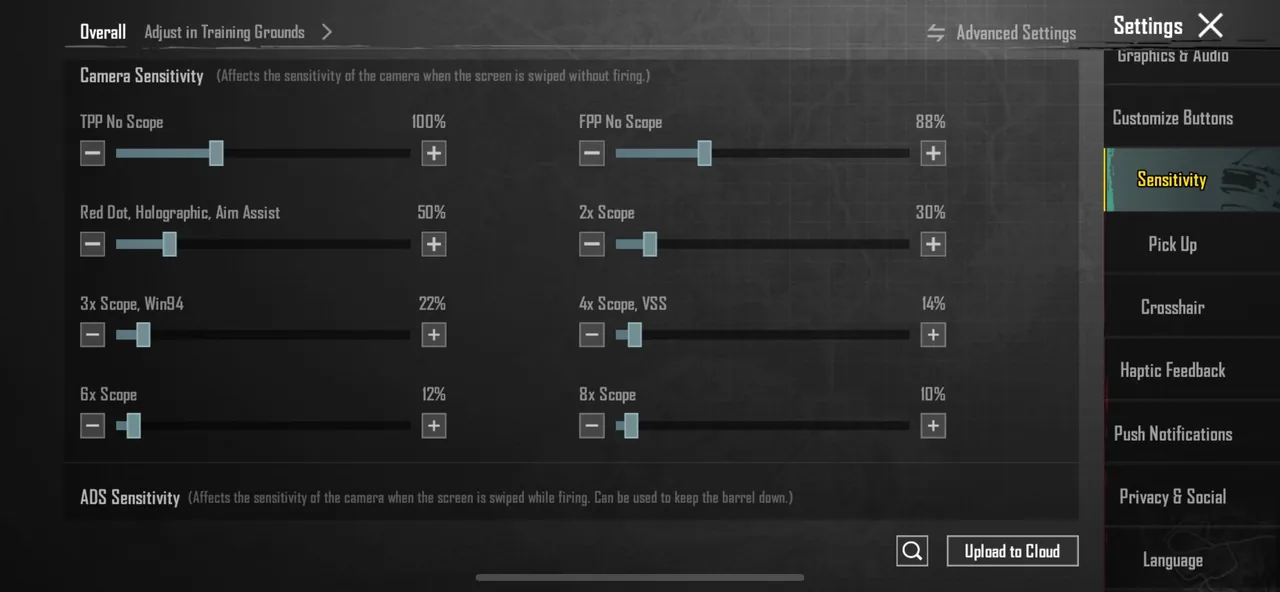
Open Settings > Sensitivity to see the main groups:
- Free Look sensitivity: how fast the camera moves when you use the eye button to look around without turning your character.
- Camera sensitivity: how fast your view turns when you swipe while not firing, with separate values for third-person, first-person, red dot, holographic and each scope (2x, 3x, 4x, 6x, 8x).
- ADS sensitivity: how fast your aim moves when you swipe while firing, again split by scope. This is the setting that controls recoil.
- Gyroscope sensitivity: how much your aim moves when you tilt the phone, if gyroscope is turned on. It also has values per scope.
Two rules make all of this simpler:
- Camera is for finding targets. Higher values turn faster but make small adjustments harder.
- ADS is for controlling spray. Values that are too high make recoil hard to hold down, while values that are too low make tracking moving enemies difficult.
Gyroscope: On or Off?
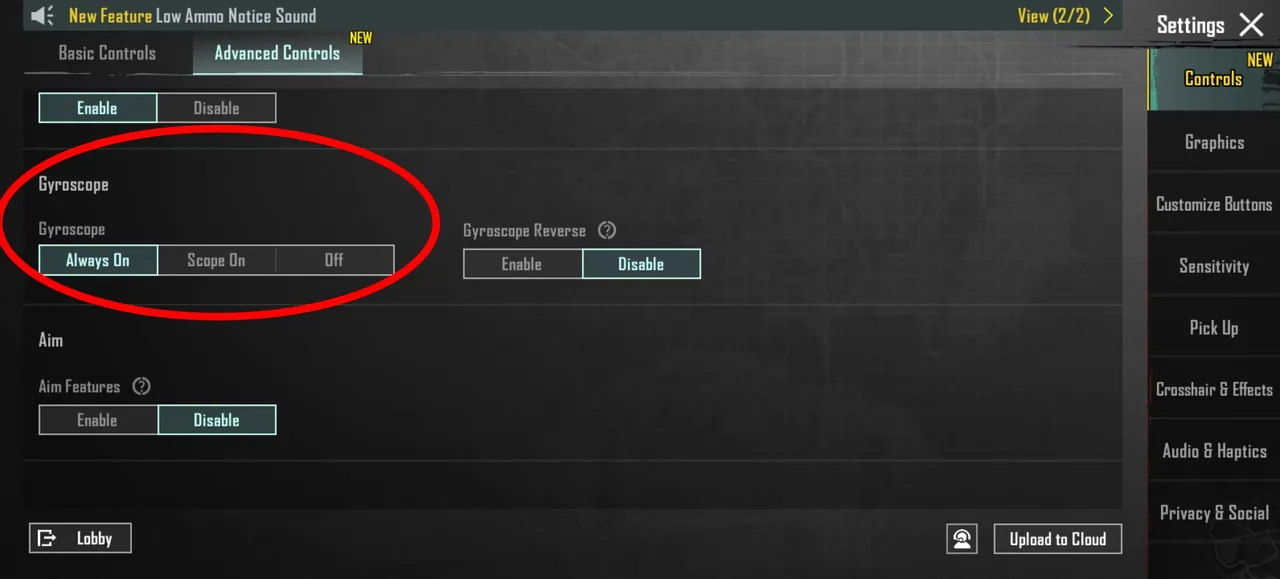
Gyroscope lets you aim by moving your phone, which many top players use for recoil control and fine adjustments. You can set it to:
- Off: all aiming comes from swiping.
- Scope On: gyroscope only works when you aim down sights.
- Always On: gyroscope works all the time.
Scope On is a good starting point if you want to try it, since it adds precision when aiming without making your view wobble while you move. Gyroscope takes a few days to get used to, so give it time before judging it.
Why Copied Settings Often Fail
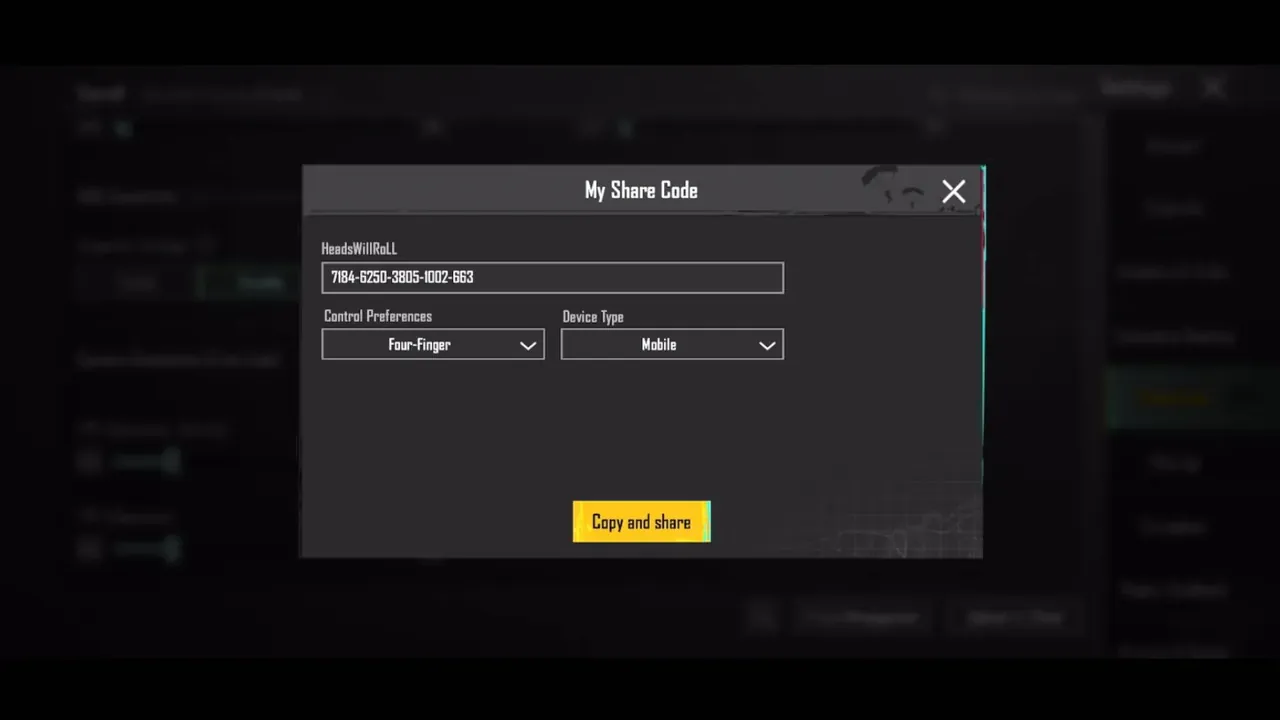
Sensitivity codes and "pro settings" are easy to find, but they rarely transfer well:
- Screens differ in size and touch response, so the same value feels different on another phone.
- Finger style matters. Two-finger and claw players need different values.
- Gyroscope users and swipe-only players need very different ADS settings.
- Frame rate changes how smooth movement feels at the same value.
A shared code is a fine starting point, but treat it as a draft to adjust, not a finished setup.
A Step-by-Step Method to Find Your Own
The Training Ground is the best place to tune, since it has targets at fixed distances and every scope available.
- Start with Camera, no scope. Turn 180 degrees with one comfortable swipe. If you cannot, raise it. If you overshoot, lower it.
- Tune red dot and 2x Camera so you can move between nearby targets without overshooting.
- Move to ADS, starting with red dot. Fire a full spray at a target 50 metres away while pulling down. If the bullets climb above the target, raise ADS. If you drag below it, lower ADS.
- Repeat ADS for 3x and 4x at longer targets.
- Tune 6x and 8x last, mainly for single shots rather than sprays.
- Add gyroscope if you use it, starting low and raising it slowly.
- Test in real matches for a few days before making more changes.
Change one setting at a time, in small steps of around 5 to 10 points, so you know which change made the difference.
Signs Your Sensitivity Is Too High or Too Low
Too high:
- You overshoot targets when turning.
- Your aim shakes or jumps during small adjustments.
- Sprays fly upward even when you pull down.
Too low:
- You cannot turn fast enough when someone shoots from behind.
- You need several swipes to follow a moving enemy.
- You drag your aim below the target while spraying.
Layout and Graphics Also Matter
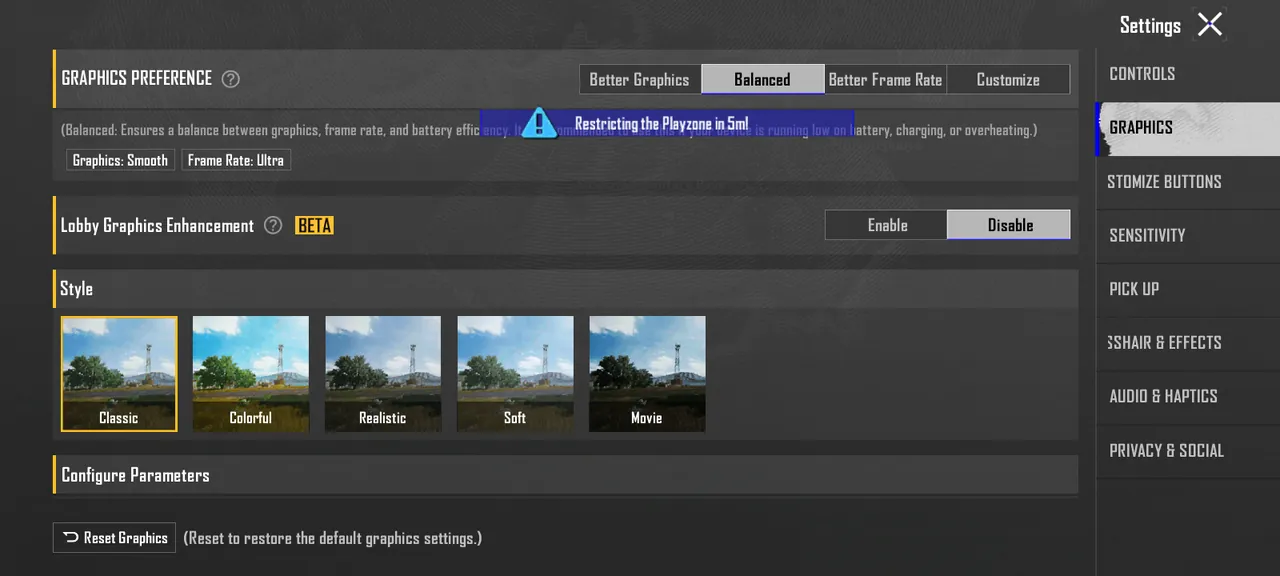
Sensitivity works together with your control layout and graphics settings:
- Place the fire button where your thumb can fire and swipe without slipping.
- Use a frame rate your phone can hold steadily, since drops make aim feel inconsistent.
- Recheck sensitivity after changing graphics, because a different frame rate can change how the same values feel.
If you play on a computer, sensitivity works differently again. Playing PUBG Mobile on PC through an emulator replaces touch with mouse controls, so you will need to tune from scratch. Controllers come with their own rules too, including which devices and controllers PUBG Mobile matches together.
Save and Share Your Settings
Once you are happy with your setup, save it. PUBG Mobile lets you keep settings on your account and share layout and sensitivity setups through codes in the settings menu, which is useful if you change phones or want to help a friend start from your values.
Putting Your Settings to Work
Good sensitivity makes every fight easier, but it shows most in ranked, where small aim differences decide close matches. Knowing how each tier and rank point system works helps you set realistic goals as your aim improves.
If you want a stronger account to practise on, you can browse PUBG Mobile Accounts, hand daily missions and Royale Pass progress to a player through PUBG Mobile Hourly Services, or reach your target tier this season with PUBG Mobile Boosting.
GameMarket.gg is a trusted digital marketplace for everything gaming-related. We serve the gaming community by providing secure access that enhances every gaming journey.