How to Play Free Fire on PC: Emulators, MAX on PC and Requirements
By Sir Ayup
Free Fire PC play works through an Android emulator or, for Free Fire MAX, through Google Play Games on PC, since Garena has no standalone Windows version of the game. Popular emulators such as BlueStacks and LDPlayer run Free Fire on most modern PCs, Free Fire MAX on Google Play Games needs a stronger machine, and both use the same account as your phone. One thing to know before you start: emulator players are matched with other emulator players in ranked, so PC play is a different experience from mobile, not an advantage over it.
This guide explains every way to play Free Fire on PC, what hardware you need, how to set up controls, and the rules that keep your account safe.
Your Options for Playing on PC
There are two main routes:
- An Android emulator. Software such as BlueStacks, LDPlayer, MEmu or NoxPlayer runs Android apps on Windows, so you install Free Fire or Free Fire MAX inside it as you would on a phone.
- Google Play Games on PC. Google's own PC app offers Free Fire MAX directly. It is simpler to set up, but its hardware requirements are higher than most emulators.
Either way, you are running the mobile game on a computer. There is no separate PC edition with its own servers or progression.
Free Fire or Free Fire MAX on PC?
Both versions use the same account, so you can switch between them without losing progress. The difference is weight:
- Free Fire is lighter and runs better on older or low-end PCs.
- Free Fire MAX has higher-quality graphics and effects, so it needs more memory and a better graphics chip.
If your PC is modest, start with regular Free Fire. If it handles that easily, try MAX for the better visuals.
PC Requirements
Requirements depend on the route you choose. As a general guide:
For most emulators:
- Windows 10 or 11.
- At least 4 GB of RAM, with 8 GB recommended for smooth play.
- Virtualization (VT) enabled in your PC's BIOS or UEFI settings. Most emulators need it or run much better with it.
- Free storage space for the emulator plus the game, which together can take tens of gigabytes.
For Google Play Games on PC (Free Fire MAX):
- Windows 10 (version 2004) or newer.
- 8 GB of RAM and a 4-core processor.
- An SSD with free space and a graphics chip comparable to Intel UHD 630 or better.
- Virtualization enabled.
To check whether virtualization is on, open Task Manager, go to the Performance tab and look at the CPU section. If it shows as disabled, it can be turned on in your BIOS or UEFI settings.
How to Set It Up
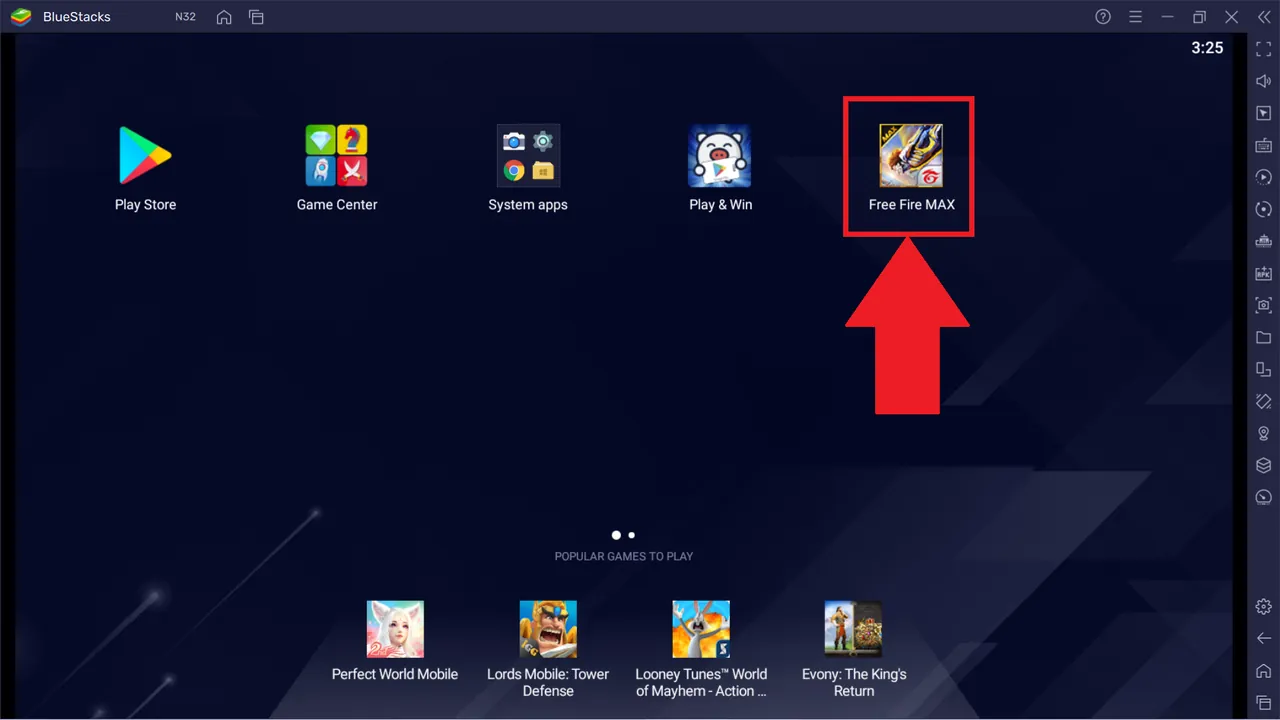
The process is similar for every emulator:
- Download the emulator from its official website. Avoid third-party download sites, which may bundle unwanted software.
- Install it and enable virtualization if the emulator asks you to.
- Sign in to the Google Play Store inside the emulator.
- Install Free Fire or Free Fire MAX from the store.
- Log in with the same account you use on your phone, such as Google or Facebook, so your progress carries over.
- Adjust the emulator's performance settings, such as RAM and CPU cores allocated, to suit your PC.
For Google Play Games on PC, install the app from Google's website, sign in and install Free Fire MAX from its library.
Before you log in, make sure your account is bound to a login such as Google or Facebook. Guest accounts are tied to one device, so logging in on a new platform can leave you without your progress.
Controls on PC
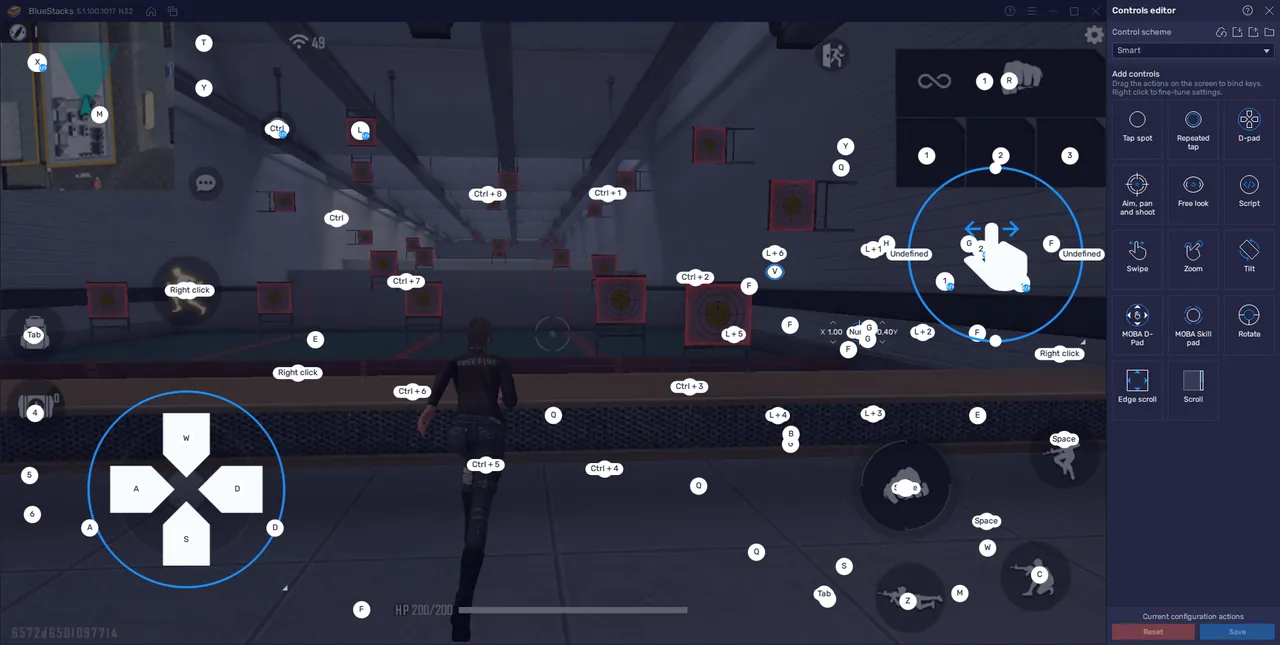
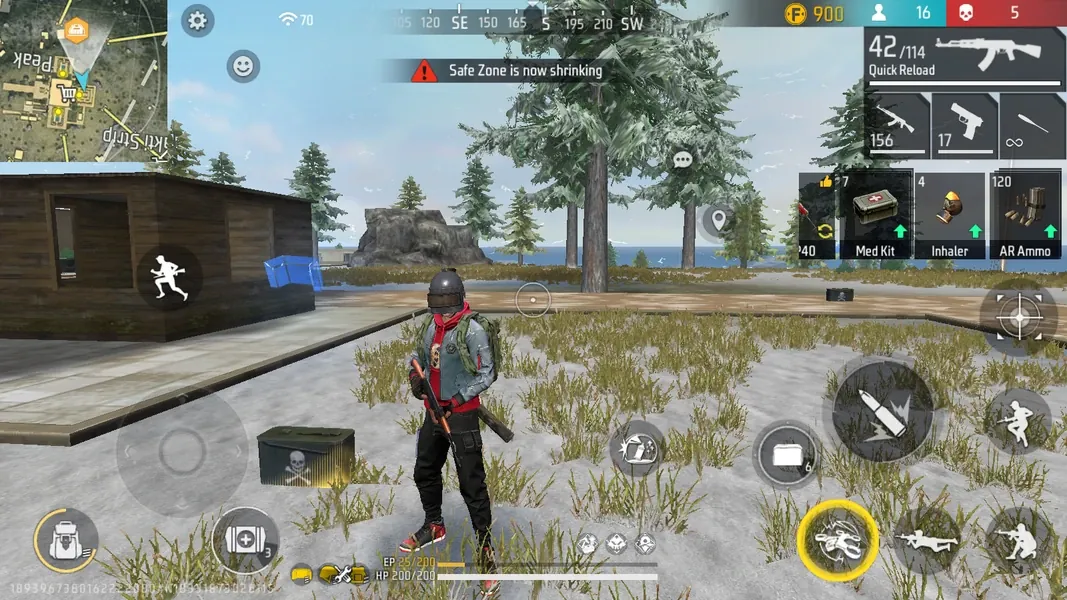
Emulators map keyboard and mouse controls onto the touch screen. Most come with a ready-made layout for Free Fire, usually similar to:
- WASD to move and the mouse to aim.
- Left click to fire and right click to aim down sights.
- Space to jump, C to crouch and Z to go prone.
- R to reload and F to pick up items.
- Tab for the inventory and M for the map.
You can change any key in the emulator's keymapping menu. Spend a few minutes in training mode adjusting mouse sensitivity, since a setting that feels right on a phone rarely feels the same with a mouse. Lower sensitivity often works better on PCs that cannot hold a high frame rate.
How Matchmaking Works for PC Players
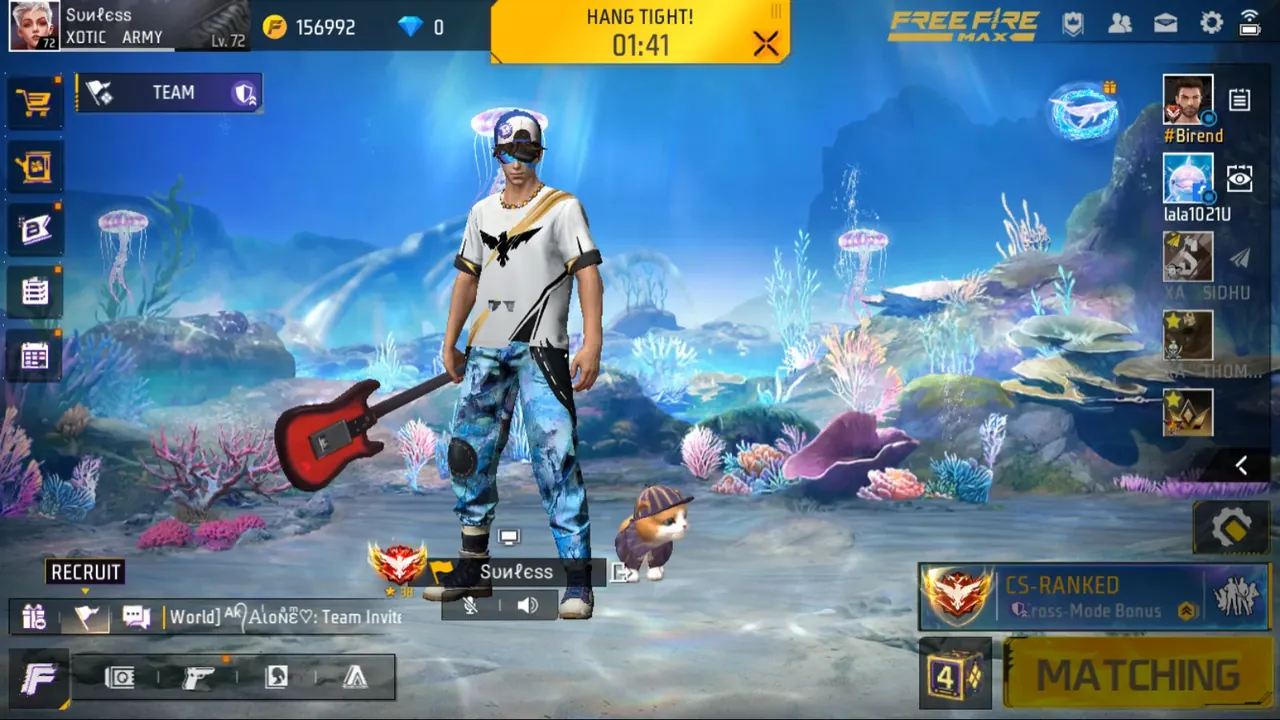
Garena allows emulators, but it does not mix them freely with phone players in ranked:
- Emulator players are matched with other emulator players in ranked Battle Royale and Clash Squad.
- If anyone in your squad uses an emulator, the whole squad joins the emulator matchmaking pool.
- Emulator players are marked with an icon in team invites, so squadmates know.
- Emulator accounts are kept off certain leaderboards.
So playing on PC does not give you an easy edge over mobile players. You face other keyboard and mouse players instead.
Keeping Your Account Safe on PC
Playing on a mainstream emulator is allowed. What gets accounts banned is trying to hide or modify things:
- Do not use tools that hide the emulator from Garena's detection.
- Do not install modified or "patched" versions of the game.
- Avoid aim assist, recoil scripts or macro tools that give an unfair advantage.
- Only download emulators and the game from official sources.
Test builds such as the Advance Server are a separate case. The Free Fire Advance Server is distributed as an Android APK for selected players, and it runs on its own servers rather than as part of your normal game.
Getting the Most From PC Play
PC play suits players who prefer a mouse, want a bigger screen, or play long sessions. To make the switch smoother:
- Practise in Clash Squad first, where rounds are short and you can get used to mouse aim quickly.
- Rebuild muscle memory deliberately, since your movement and aim habits from mobile will not transfer directly.
- Review your character setup, because the right skills matter just as much on PC, and proven skill combinations are a solid starting point.
If you are new to the game altogether, learning how characters, Diamonds, modes and ranked work in Free Fire helps before you dive into PC ranked. Whichever device you play on, your progress follows your account, so you can pick up one of the Free Fire Accounts with the characters and skins you want, hand daily missions and events to a player through Free Fire Hourly Services, or climb ranked faster with Free Fire Boosting.
GameMarket.gg is a trusted digital marketplace for everything gaming-related. We serve the gaming community by providing secure access that enhances every gaming journey.